Educators work students with a variety of different strengths, weaknesses, interests, and learning preferences. These variabilities can present barriers to teaching and learning if the proper supports to meet the unique needs of students are not in place.
With Everway's Equatio, students with a variety of backgrounds and learning abilities can engage with math and STEM content in the ways they prefer.
What is Equatio?
Equatio software is an advanced equation editor that makes math digital and accessible. Simply type, handwrite, or dictate any expression, and Equatio will convert it to accurate digital math which can be added into Microsoft Word and PowerPoint documents, Google Workspace apps, or D2L with a click.
Features - at a glance
The Equatio toolbar includes a number of features to make digitizing math easier.
Equation Editor
Create your math and science expressions by typing directly into the editor. Use Prediction to insert fractions, exponents, operators, formulas, chemical symbols, and more.
Desmos Scientific Calculator
Access the Desmos Scientific Calculator for basic sums, trigonometry, roots, functions, exponents and more.
Equatio mobile
The mobile app enables you to use your phone or tablet to insert handwritten math, spoken math, or images into your document.
Screenshot reader
Turn any equation across the web into accessible, editable math with the Equatio Screenshot Reader. Simply take a screenshot of the inaccessible equation to convert it into accessible math, which will automatically be read aloud.
Handwriting recognition
Handwrite math expressions using a touchscreen device or mouse pointer.
Forms Creator
Create math assessments in Google Forms with the help of AI. Simply choose the grade, topic, and number of questions you need and Equatio will do the rest.
Desmos Graphing Calculator
Create and customize single or multiple graphs, plot ordered pairs or tables of points and more, with this tool powered by Desmos graphing calculator.
Equatio mathspace
A collaborative workspace for your Chrome browser that gives instructors and student the ability to collaborate on math.
LaTeX Editor
For more advanced users, use LaTeX to create math expressions and add them directly into digital documents.
STEM Tools
Equatio is not just for math educators. We’ve got tools for science teachers too. With a chemical formula writer, periodic table, and more.
Speech input
Dictate equations and formulas aloud. Equatio understands what you’re saying, turning your spoken input to written expressions.
Whiteboard
Access an interactive scratch pad containing shapes, arrows, lines, freehand annotations, text entries, and more.
How to Get Equatio
Equatio is available in D2L through the "Insert Stuff" menu item when editing quiz questions, files, and discussions.
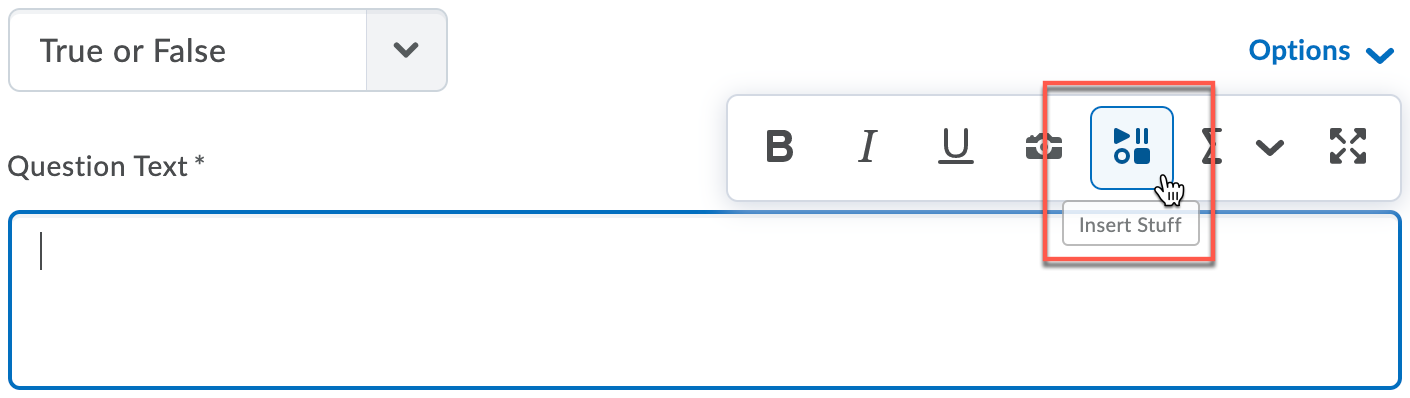
The Equatio Pro version for Windows, Mac and Google is available to all faculty, staff and students at MSU using their MSU Google account.
To install Equatio on your laptop or PC:
- For Windows and Mac:
- Follow the Getting Started with Equatio (Windows/Mac) instructions.
- When prompted to log in, choose the Google option and enter your MSU NetID and password.
- For the Google Chrome extension:
- If you are signed in to Google Chrome with your MSU Google account, you cannot install extensions. You can use a separate Chrome profile with a personal account as a workaround.
- Follow the Getting Started with Equatio (Google Chrome) instructions to add the extension.
- The Equatio extension in Google Chrome can be used in Google Docs, Forms, Slides, and Sheets. Plan to be signed in to Google Chrome with a non-MSU account, but sign into Google Drive with your MSU Google account.
Training Resources
- Equatio introduction video (YouTube)
- Introducing Equatio playlist (YouTube)
- Equatio Feature Demos playlist (YouTube)
- Equatio Academy - the central hub of all Equatio resources for instructors and students, including a step-by-step training guide.
- Equatio-related blogs - best practices and thought pieces related to Equatio, math, and STEM.